





Instagram’s Instants Feature Is Sending Photos Before People Realize It — Here’s How to Shut It Off

By Ates in Technology
· 24 views
Instagram switched on a worldwide feature yesterday called Instants, pitched as a way to share fleeting, candid photos that vanish after viewing. The Meta-owned platform framed it as a fresh format for capturing real-life moments, but plenty of users opening the app for the first time discovered something less charming: their photo had already been beamed out to hundreds of contacts before they understood what tapping the shutter even did.
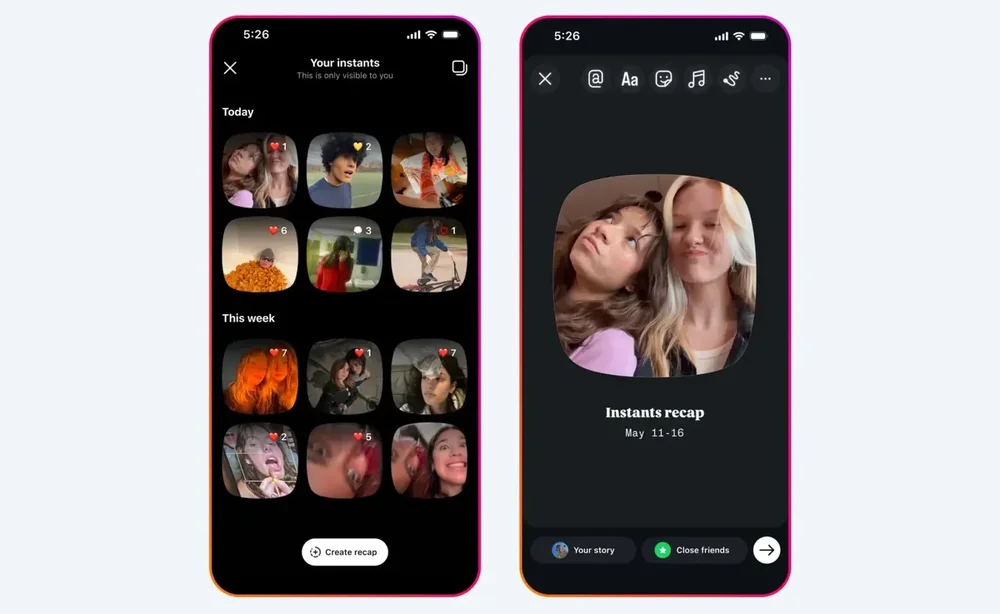
Key Takeaways:
Tapping the Instants shutter button immediately sends the photo to everyone on your Friends list by default, with no preview or confirmation step.
You can disable the feature entirely through Settings → Content Preferences → Hide Instants in Inbox.
An Undo option appears after sending, and the archive (four-box icon at the top of the camera) lets you delete photos before recipients open them.
The setup looks innocent enough. Tap the little stack of photos in the bottom-right corner of your Instagram inbox, and a short tutorial appears. It tells you that Instants disappear, there’s no viewers list, and any reactions or replies stay private. The walkthrough then shows you how to view and react to images others have sent.
Then comes the camera. A shutter button sits at the center. Beneath it, a toggle switches between two audiences: “Friends” and “Close Friends.” Friends is the default.
What the tutorial skips over is the part most people would actually want flagged: the second you press the shutter, the photo flies out to everyone on your Friends list automatically. No review screen. No confirmation tap. Unless you’ve manually switched the toggle to Close Friends beforehand, your entire Friends list gets it.
An undo button does appear after the photo sends, but it sits where most people aren’t looking, especially during the small flash of panic that follows realizing you’ve just shared something you didn’t mean to. Some users haven’t even noticed a photo went out at all.
For an app where people are used to picking the right filter, cropping, second-guessing the caption, and then maybe still not posting, the instant-send mechanic has rubbed plenty of users the wrong way. Privacy is the obvious concern, and the design doesn’t make much room for hesitation.
So, how do you switch it off?
How to turn off Instants
Open your profile, tap the three-line menu at the top right to reach settings, then scroll to Content Preferences. There, toggle “Hide Instants in Inbox.”
With that flipped on, the Instants section disappears from your inbox entirely. You won’t see Instants sent by anyone else either.
If a full shutdown feels like too much, there’s a middle option: press and hold the Instants pile in your inbox, then swipe right. That temporarily pauses Instants from people without removing the feature outright.
How to undo an Instant
The moment a photo sends, an Undo option appears just below the shutter button. Tap it quickly and the image pulls back before recipients open it.
There’s also a longer-window option. Tap the four-box icon at the top right of the camera to open your archive. From there, deleting an Instant unsends it to anyone who hasn’t yet viewed it.
The fix is straightforward once you know where to look — the trouble is that most people don’t find out until after the photo has already gone.
Written by Vytautas Valinskas
Recommended Comments